Put your GPU online
You run one command on the computer with the GPU. It installs everything, connects the computer to GPUFlow and keeps it connected. You don’t need Docker or SSH, and you don’t open any ports on your router.
What you need
Section titled “What you need”- A computer running 64-bit Linux with systemd. Ubuntu, Debian, Fedora, Arch, openSUSE and their relatives all work. Both regular PCs (x86_64) and ARM (arm64) are fine.
- A GPU. NVIDIA is the tested path. AMD cards work through Ollama’s ROCm support, but the dashboard doesn’t show AMD GPU details yet.
- Permission to use
sudoon that computer. - A GPUFlow account. Create one here. Confirm your email address too; you need it to get paid.
1. Copy your install command
Section titled “1. Copy your install command”- Open your Dashboard and click My Machines in the menu on the left.
- Under Add a GPU in one command, leave What is this machine for? on A new listing (set it up once it’s online).
- Click Copy next to the command.
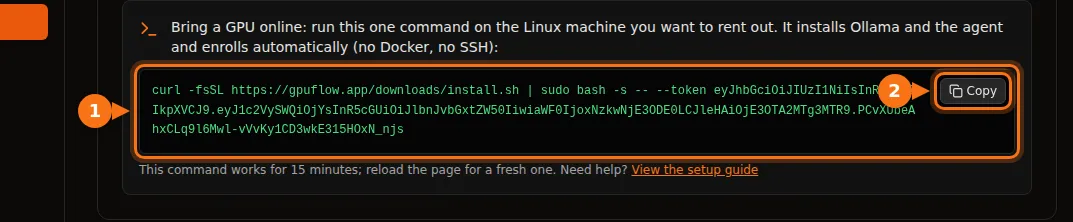
The command looks like this (yours has your own token at the end):
curl -fsSL https://gpuflow.app/downloads/install.sh | sudo bash -s -- --token eyJhbGciOi...2. Run it on the GPU computer
Section titled “2. Run it on the GPU computer”-
On the computer with the GPU, open a terminal.
-
Paste the command and press Enter. Type your password if
sudoasks for it. -
Wait for this line:
Enrolled. gpuflow-agent is running.Your computer is online from this moment. The installer then downloads an AI model, which can take a few minutes the first time.
3. Create your listing
Section titled “3. Create your listing”Back on My Machines, your computer now shows Online with the message This machine is online but not listed.
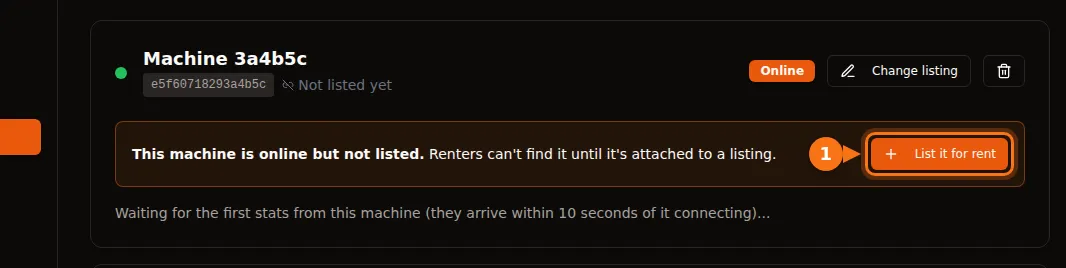
Click List it for rent. The listing form opens with this machine already chosen. Fill in the name, GPU model and hourly price, then click List GPU.
Not sure what to write or what to charge? See write a good listing and how to price your GPU.
4. Check that it’s live
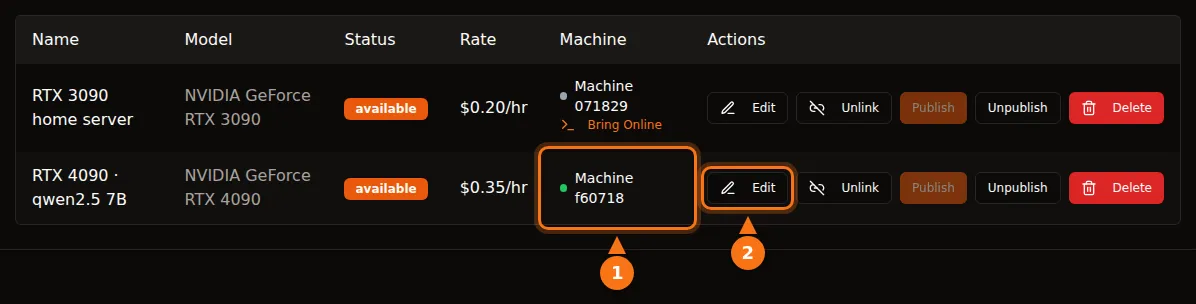
Section titled “4. Check that it’s live”Open My GPUs. Your listing shows the machine with a green dot. It now appears in the marketplace, and renters can rent it.
Other ways to do it
Section titled “Other ways to do it”Listing first: click List a GPU, fill in the form and leave Machine on None, attach one later. On My GPUs, click Bring Online under the listing. That gives you a command that attaches the computer to that listing, so there is nothing to link afterwards.
A computer shows Offline: every offline computer on My Machines has its own command right on its card. Run it on that computer. It reinstalls the agent and brings back the same machine, so its listing lights up again and no duplicate is created. Running a dashboard command twice on the same computer is always safe.
Choosing an AI model
Section titled “Choosing an AI model”Renters use your GPU through AI models that run on it. The installer downloads qwen2.5:7b by default. To choose another one, add --model at the end of the command:
curl -fsSL https://gpuflow.app/downloads/install.sh | sudo bash -s -- --token <your token> --model llama3.1:8bCommon choices, from small to large: qwen2.5:0.5b, deepseek-r1:1.5b, qwen2.5:7b, deepseek-r1:7b, llama3.1:8b, qwen2.5:14b. A model has to fit in your GPU’s memory (VRAM), so pick a small one for small cards.
To add a model later on a computer that is already online, you don’t need a new token:
curl -fsSL https://gpuflow.app/downloads/install.sh | sudo bash -s -- --model qwen2.5:14bAlready run your own OpenAI-compatible server? Add --engine none --ollama-url http://127.0.0.1:<port>.
Checking on it
Section titled “Checking on it”systemctl status gpuflow-agent # is it running?journalctl -u gpuflow-agent -f # live log (Ctrl+C to stop)The agent restarts itself after a crash or a reboot. It only makes outgoing connections, to gpuflow.app and ws.gpuflow.app, so it works behind any home router without port forwarding.
Live stats
Section titled “Live stats”Each machine card on My Machines shows, updated every 15 seconds:
- Speed (benchmark): tokens per second for each of your models, measured on your machine. The agent tests a model once when it appears and again every day, but only when nobody has used the machine for 5 minutes. A renter always interrupts the test.
- Served to renters: real speed and time to first token from actual rentals.
- GPU: temperature, load, VRAM, power draw, fan, clock speeds, PCIe link.
- System and models: CPU temperature and load, RAM, operating system, uptime, installed models, and the model loaded right now.
Only you can see these stats.
What you’ll be told
Section titled “What you’ll be told”You get an email and a notification (the bell at the top of the site) when:
- your GPU is rented,
- a renter is waiting for your GPU while it’s offline (at most once a day per GPU). Start the machine to take the rental.
- a cash-out is sent, or didn’t go through.
You get a notification when a rental ends, with what you earned, and when earnings become ready to cash out.
Next: write a good listing.