Rent a GPU, step by step
Renting a GPU on GPUFlow takes about five minutes. You need an email address and a payment card.
What you get: an API key for one GPU, for the hours you choose. The key works like an OpenAI key, so any app or script that talks to the OpenAI API can use it. There is no server to log into and nothing to install.
1. Create an account
Section titled “1. Create an account”- Go to gpuflow.app and click Sign Up in the top right corner.
- Fill in a username, your email address and a password (twice).
- Click Create Account.
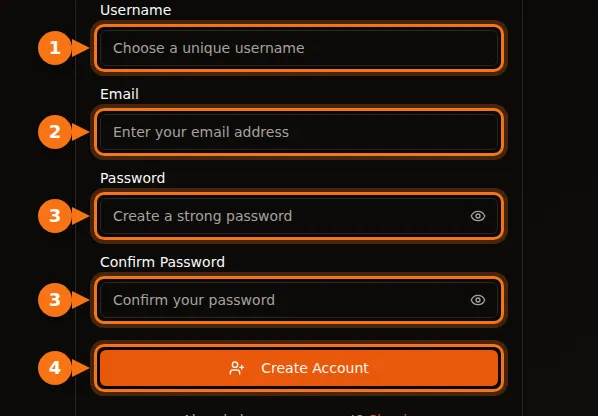
You can also click Continue with Google or Continue with GitHub instead of making a password.
2. Confirm your email address
Section titled “2. Confirm your email address”GPUFlow sends you an email right away. Open it and click the link inside.
3. Add credits
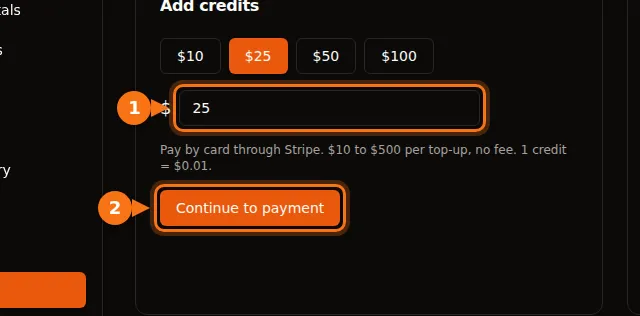
Section titled “3. Add credits”Credits are what you pay for rentals with. 1 credit = $0.01, so $25 buys 2,500 credits.
- Open your Dashboard and click Payments in the menu on the left.
- Under Add credits, click an amount, or type your own. You can add from $10 to $500 at a time. There is no fee.
- Click Continue to payment. You go to Stripe, our payment partner, to pay by card.
- After paying you come back to GPUFlow. Your credits show up within a minute, at the top of the Payments page and on the orange button in the header.
4. Pick a GPU
Section titled “4. Pick a GPU”Click Browse GPUs at the top of any page. GPUs that are ready right now are in the green Instant Access Available section.
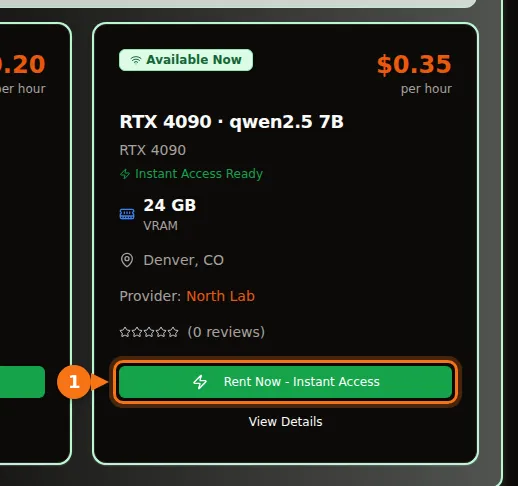
On each card, check:
- The price per hour. This is what one hour costs you.
- VRAM. Bigger AI models need more. As a rough guide, a 7B model runs well on 8 GB or more, a 14B model on 16 GB or more.
- The model. Click the GPU’s name to open its page. Providers write which AI models they serve (for example
qwen2.5:7b) in the description.
When you’ve picked one, click Rent Now - Instant Access.
5. Choose how many hours
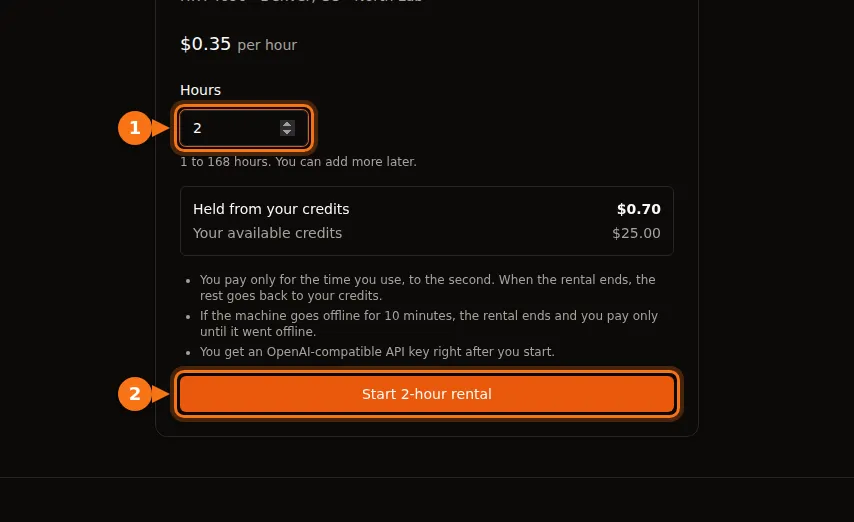
Section titled “5. Choose how many hours”- Type the number of hours you want. Most GPUs allow 1 to 168 hours (one week). You can add more hours later.
- Check the two lines under it: how much will be held from your credits, and how much you have.
- Click the orange button that starts the rental. It shows your number of hours, for example Start 2-hour rental.
6. Copy your API key
Section titled “6. Copy your API key”You land on Current Rentals. Your new rental is at the top.
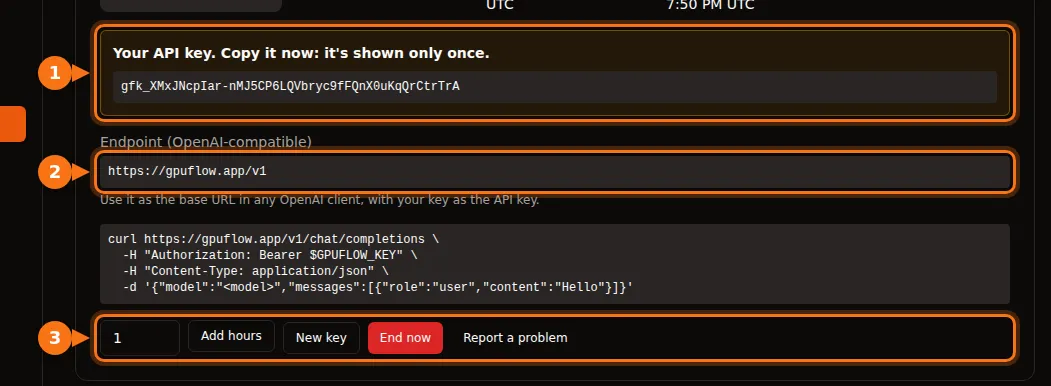
- Your API key. It starts with
gfk_. Copy it now and keep it somewhere safe. It is shown only once. - The endpoint:
https://gpuflow.app/v1. Use it as the “base URL” in your app. - The buttons: Add hours extends the rental, New key makes a new key and switches off the old one, End now stops the rental and returns the unused time to your credits.
Lost the key? Click New key. The old key stops working and a new one appears.
Next: use your API key with curl, Python, JavaScript or an app.
If the GPU you want is offline
Section titled “If the GPU you want is offline”GPUs whose owner is offline are in the yellow Available - Provider Offline section. Click Notify When Online on the card.
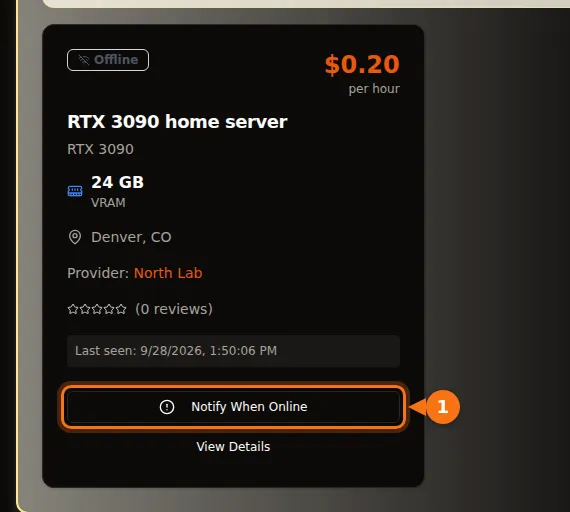
- You get an email and a notification (the bell in the header) as soon as that GPU comes online.
- The owner is told that someone is waiting for their GPU.
- Changed your mind? Click the button again (it now says You’ll be notified) to stop.
Rate your rental
Section titled “Rate your rental”When a rental ends, you can rate it. Your rating helps other renters choose, and it helps good providers get rented.
- Open Dashboard → Rental History.
- Find the rental and click Rate this rental.
- Click 1 to 5 stars. A comment is optional.
- Click Post review.
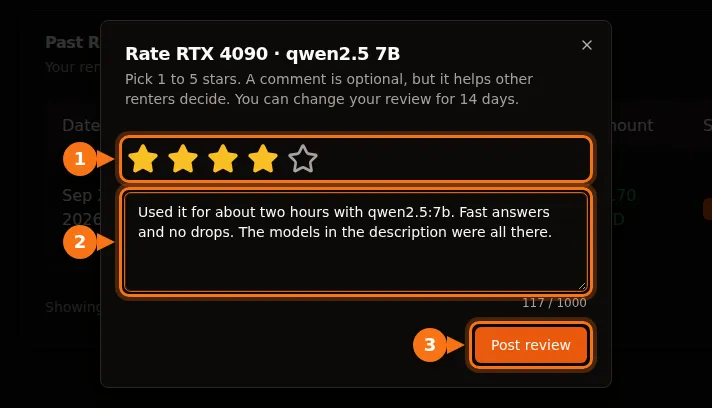
A useful comment says what you used the GPU for and how it went. For example:
Used it for about two hours with qwen2.5:7b. Fast answers and no drops. The models in the description were all there.
Good to know:
- You can rate a rental for 30 days after it ends, if it cost you something.
- You can change your review for 14 days after you post it. Click Edit review in Rental History.
- Your GPUFlow username is shown with your review. Your email address is not.
- The provider can reply publicly under your review. You get a notification when they do.